Tech & Tricks: How to partition hard disk of your computer ll Hard disk ki partition kese karen????

Friday, January 18, 2019

How to partition hard disk of your computer ll Hard disk ki partition kese karen????

Step 1: Launch EaseUS Partition Master
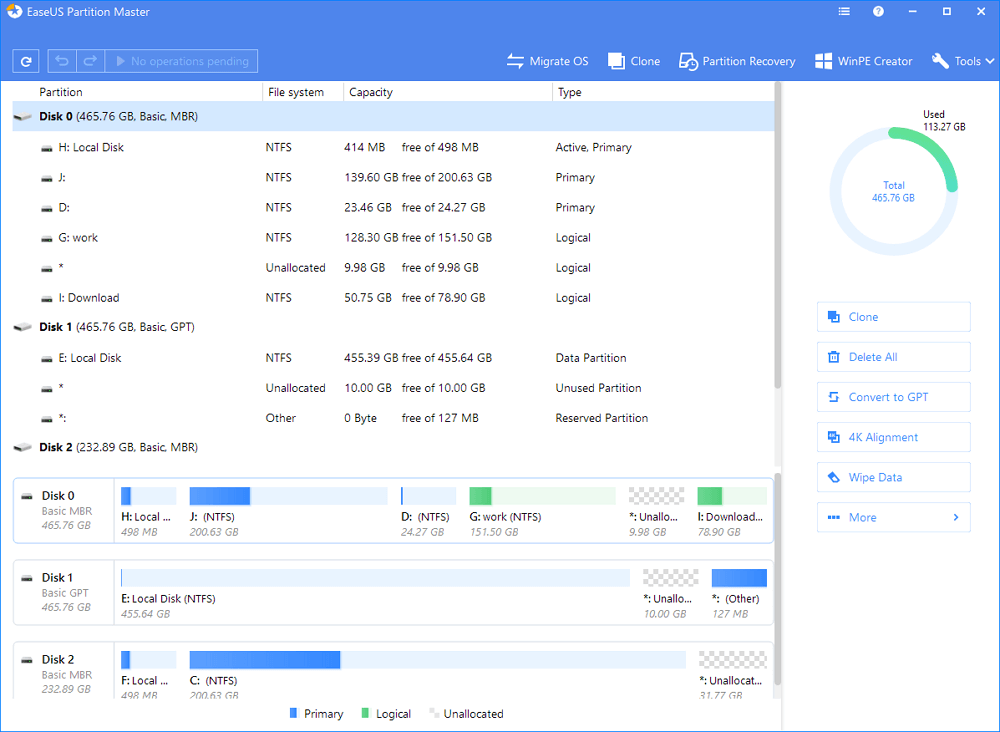
Run partition manager software
Step 2: Free up space to extend partition
If the hard drive has enough unallocated space to extend the target partition, jump to Step 3 and continue.
If not, free up space first:
1. Right-click on a partition next to the target partition and select "Resize/Move".
2. Drag the partition ends to free up space, leaving enough unallocated space behind the target partition, click "OK".
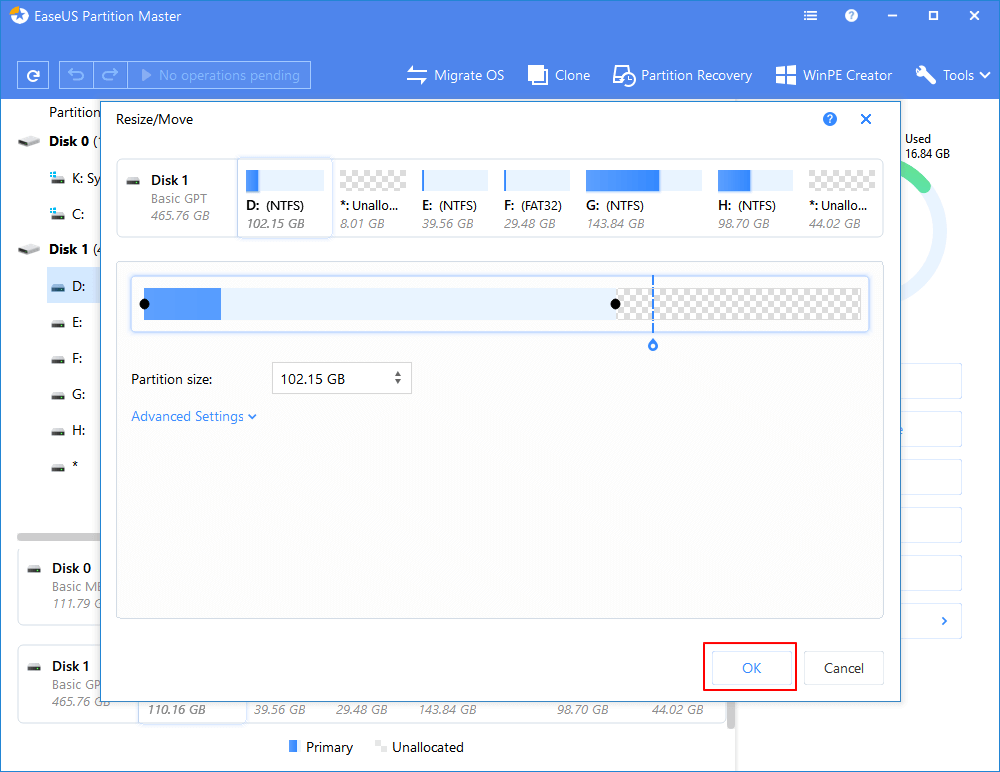
Free up space to extend partition
Step 3: Extend partition
1. Right-click on the target partition and select "Resize/Move".
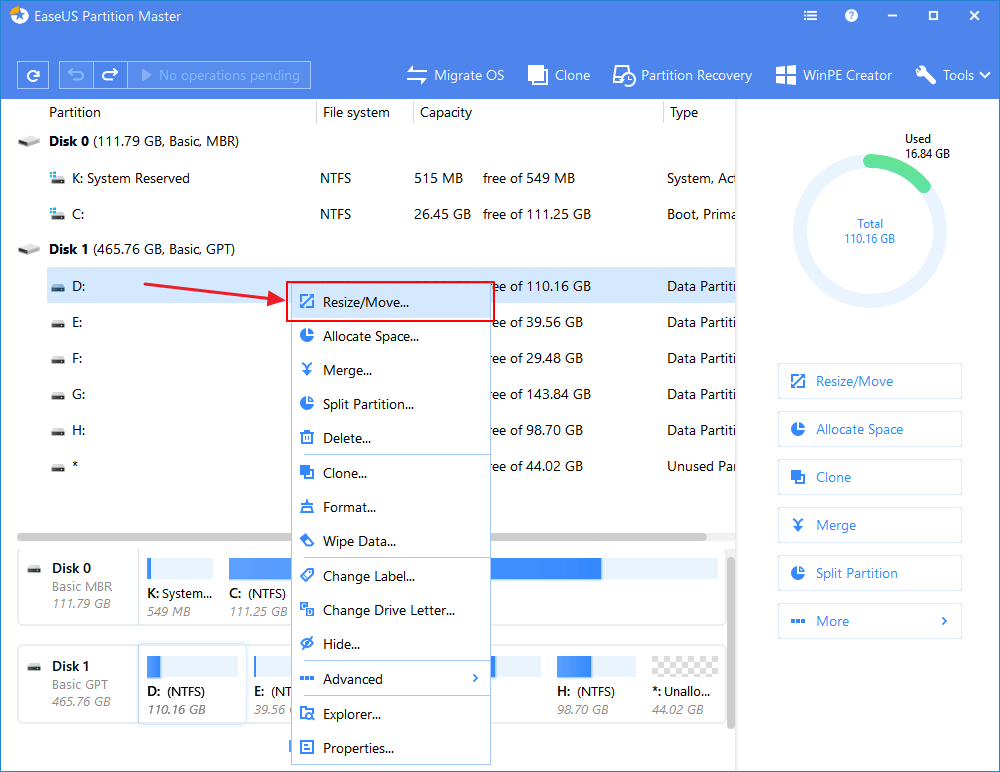
Resize target partition
2. Drag the target partition handle into the unallocated space to extend partition.
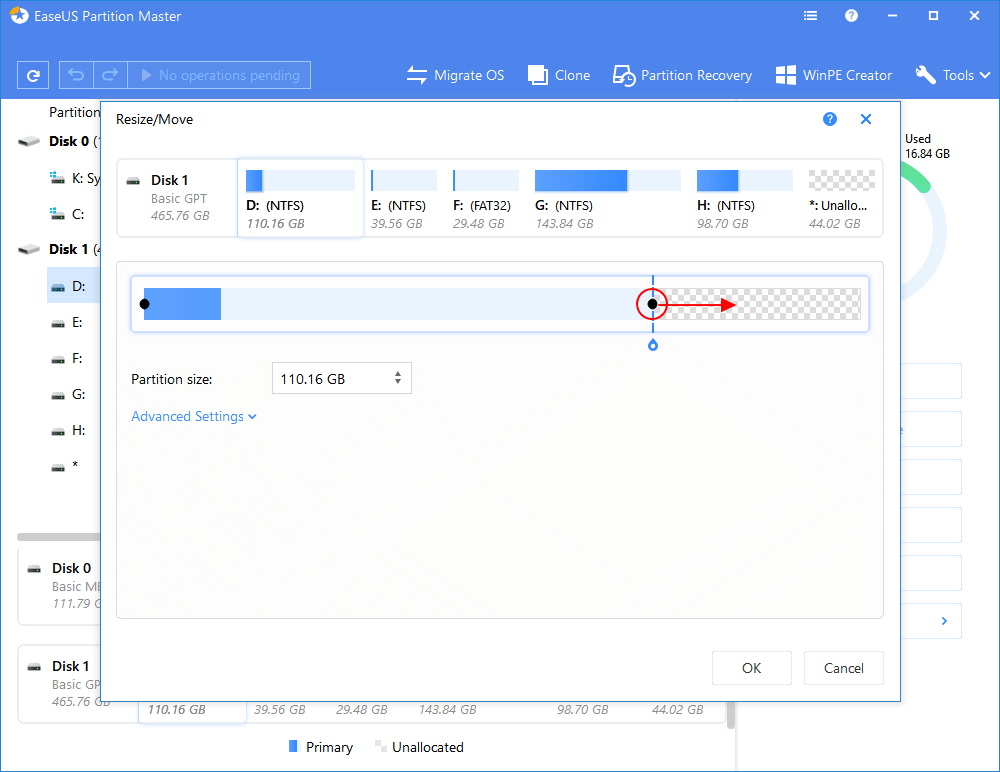
Add space to the target partition
Step 4: Keep all changes
Click the "Execute Operation" button and click "Apply" to keep all changes.
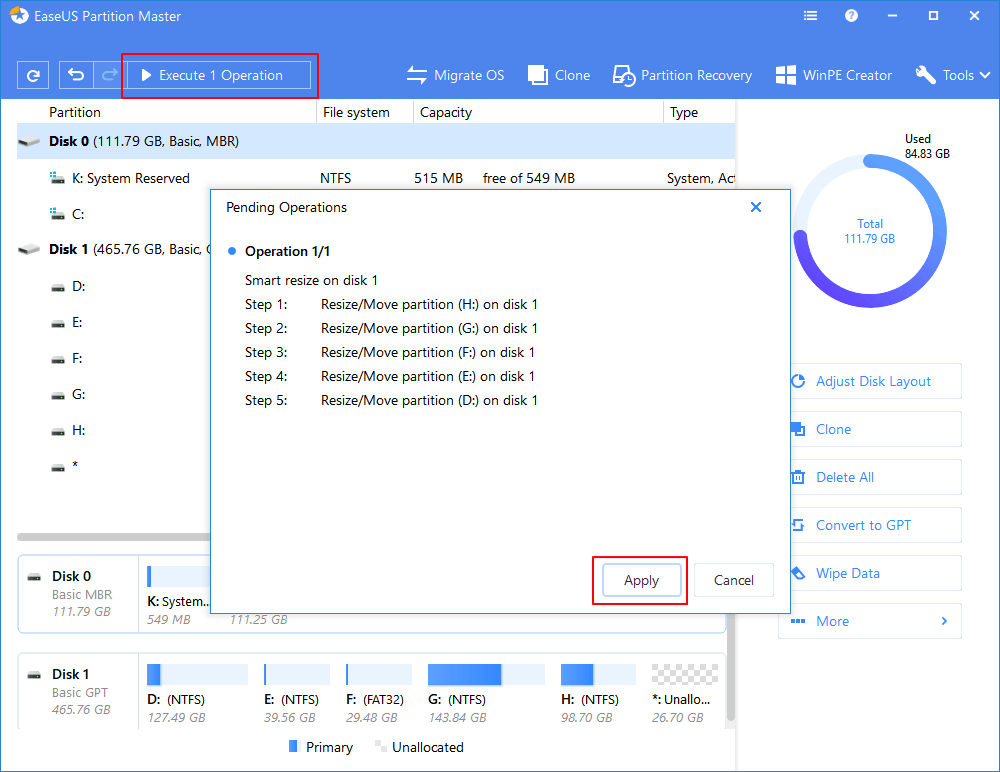
Keep all changes for extending partition
Do you think this hard drive partitioning software is useful? It applies to different Windows partition problems such as to partition Windows 10 for free. Give it a try now.

No comments:

Post a Comment

Popular Posts

Friday, January 18, 2019

How to partition hard disk of your computer ll Hard disk ki partition kese karen????

Step 1: Launch EaseUS Partition Master
Run partition manager software
Step 2: Free up space to extend partition
If the hard drive has enough unallocated space to extend the target partition, jump to Step 3 and continue.
If not, free up space first:
1. Right-click on a partition next to the target partition and select "Resize/Move".
2. Drag the partition ends to free up space, leaving enough unallocated space behind the target partition, click "OK".
Free up space to extend partition
Step 3: Extend partition
1. Right-click on the target partition and select "Resize/Move".
Resize target partition
2. Drag the target partition handle into the unallocated space to extend partition.
Add space to the target partition
Step 4: Keep all changes
Click the "Execute Operation" button and click "Apply" to keep all changes.
Keep all changes for extending partition
Do you think this hard drive partitioning software is useful? It applies to different Windows partition problems such as to partition Windows 10 for free. Give it a try now.

No comments:

Post a Comment